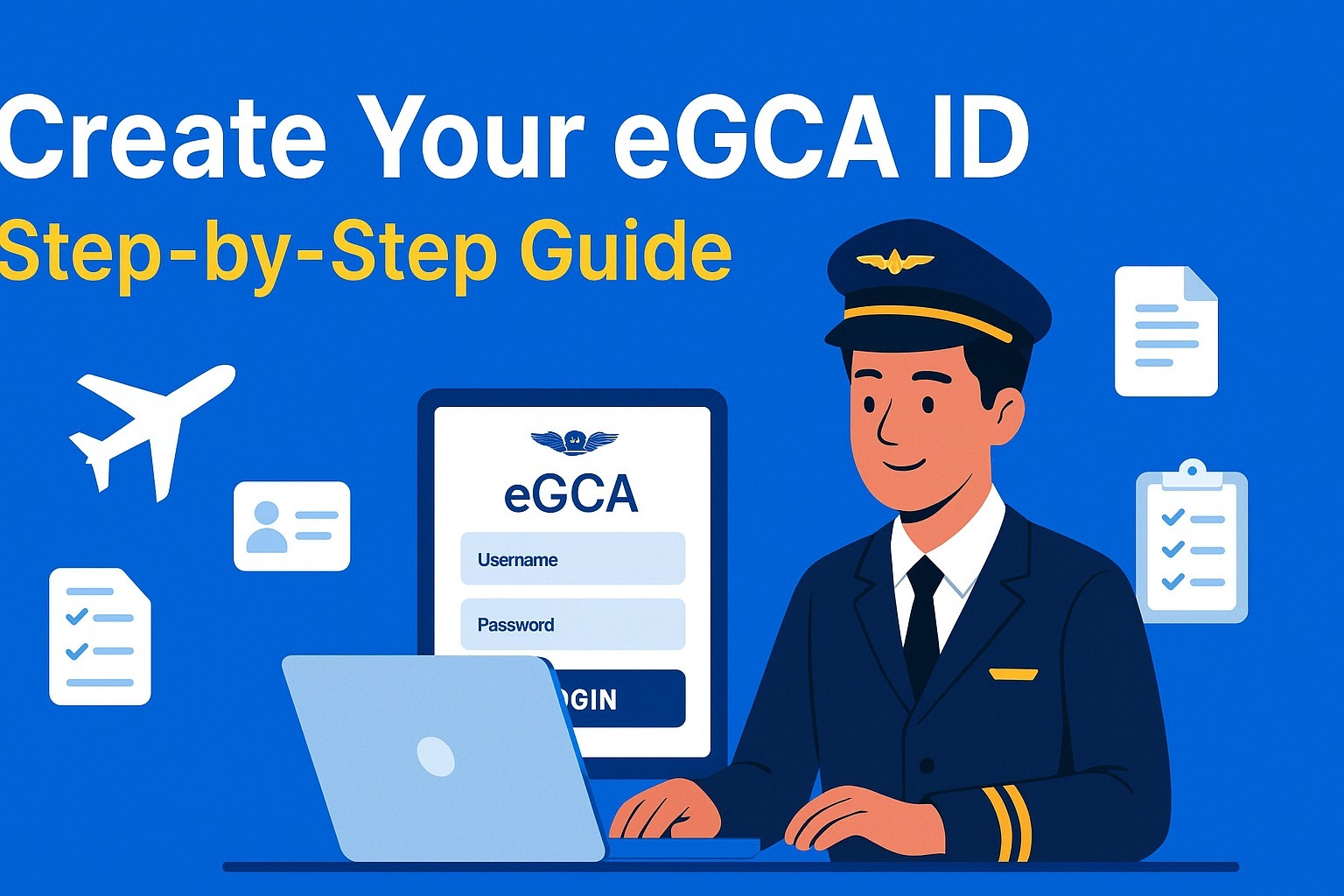
How to Create an eGCA ID — Step-by-Step Guide (Documents, Requirements & DGCA Prerequisites)
Creating an eGCA ID is the very first step for anyone who wants to become a pilot in India. Whether you’re starting your aviation career, preparing for DGCA exams, applying for your Class 1/2 medicals, or planning to join a flying school, your eGCA login will be required for every DGCA service.
This simple, updated guide explains the complete step-by-step process to create an eGCA ID, along with required documents, eligibility, and common mistakes to avoid. Perfect for CPL, PPL, DGCA exam aspirants, and student pilots across India.
⭐ What Is eGCA and Why Do Student Pilots Need It?
The eGCA portal (Digital e-Governance system by DGCA India) is used for:
Pilot profile creation
DGCA exam applications
Class 1 & Class 2 medical record tracking
Flight training updates
Licence issue & renewal (CPL, PPL, ATPL)
Instructor ratings, RTR updates, and more
Your eGCA ID becomes your lifelong digital identity as a pilot in India.
🔍 Quick Summary — What You Will Get After Registration
Once you complete the eGCA registration, you receive:
A valid eGCA username & password
Access to all DGCA pilot services
A digital profile linked to your medicals, exams, and future licenses
Most students receive their eGCA login within minutes, though in rare cases it may take several hours.
✅ Prerequisites Before Applying for Your eGCA ID
Make sure you meet these basic requirements before you start the registration.
✔ 1. Minimum Age Requirement
You must be 16 years or older to create an eGCA ID as an aspirant pilot.
✔ 2. Active Mobile Number & Email ID
Both must be:
Active
Not registered previously on eGCA
Accessible for OTP verification
✔ 3. Scanned Documents Ready (PDF/JPG)
Keep clean, readable scans of:
Identity proof
Address proof
Photograph
Signature
Class 10 marksheet
✔ 4. PMR Number (Only for Existing Pilots)
If you are already a pilot and have a PMR (Previous Medical Record), keep it ready.
Otherwise, select NO during registration.
These prerequisites ensure a smooth and fast registration process.
📄 Documents Required for eGCA Registration
Your documents must be clear, readable, and in PDF/JPG format.
Below is the official list of accepted documents, and at least one from each category is required.
🆔 Identity Proof (Choose Any One)
Aadhaar Card
Passport
Driving Licence
Voter ID / EPIC
PAN Card
Government/PSU Employee ID
Defence Dependent ID (if applicable)
Ration Card with photo
📍 Address Proof (Choose Any One)
Passport
Driving Licence
Voter ID
Ration Card
Government Health Card
Any proof accepted on the portal screen
🖼 Other Mandatory Uploads
Passport-size photograph (clear, recent)
Digital signature (scanned on white paper)
Class 10th marksheet/certificate (mandatory for educational verification)
📸 Uploading Tips for Better Approval
Scan at 300 DPI if possible
Ensure edges are not cropped incorrectly
Ensure the photo & signature are not tilted
Use good lighting
Poor-quality documents are the #1 reason for eGCA rejections.
🧭 Step-by-Step Guide: How to Create Your eGCA ID
Step 1 — Visit the Official eGCA Portal
Open: https://www.dgca.gov.in/digigov-portal/
Click eGCA Login / Sign Up.
Always use the official DGCA website to avoid fake sites.
Step 2 — Click “Sign Up” / “New User Registration”
Choose your category:
PILOT / Aspirant Pilot (most students)
Remote Pilot (for drone operator licence holders)
Step 3 — Enter Basic Details
Fill in:
Full name
Date of Birth
Nationality
Gender
PMR Number (if you have one)
Mobile number
Email ID
➡ Make sure your email & phone number are not already registered.
Step 4 — Fill Personal Information
Provide:
Permanent & correspondence address
Father/Guardian name (if requested)
ID proof type selected
➡ Spelling on your form must match your ID documents exactly.
Step 5 — Upload Documents
Upload in JPG/PDF format:
ID proof
Address proof
10th marksheet
Passport-size photo
Signature
Each file must meet DGCA’s size limits.
Step 6 — Verify OTP (Email + Mobile)
You will receive two OTPs:
One on your email
One on your mobile
Enter them correctly.
If the OTP doesn’t arrive, use Resend OTP or check the spam folder.
Step 7 — Final Review & Submit
Double-check:
Name spelling
Date of Birth
Document numbers
Uploaded files
Then submit the application.
Step 8 — Receive Your eGCA ID
Once approved, you will receive your:
eGCA username
Initial password or activation link
Save these details securely.
🔗 Useful eGCA Resources & Official Links
eGCA Login/Signup:
https://www.dgca.gov.in/digigov-portal/jsp/dgca/common/login.jsp
DGCA Main Website:
https://www.dgca.gov.in/digigov-portal/
WATCH YOUTUBE VIDEO TO CREATE EGCA ID: